

Modules
All of your HR processes in one panel — together with the mobile apps. Each module works on its own, and all twenty-seven work together.
- Employees & Records
- Hiring & Talent Pool
- Leave Management
- Attendance & Shifts
- Expenses
- Salary Advances
- Payroll
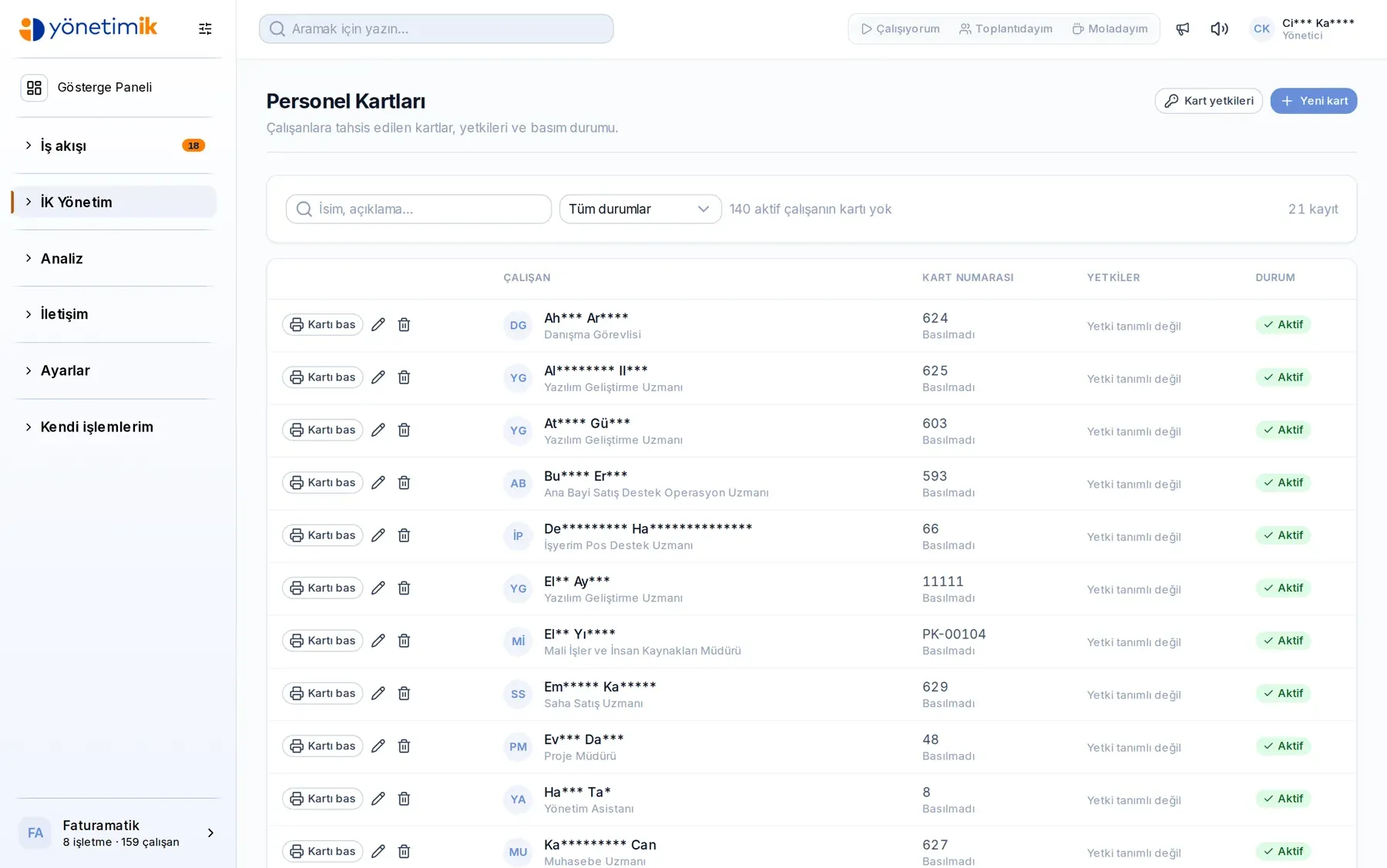
- Bonus & Performance
- Work Orders
- Assets & Equipment
- Employee Cards
- Training & Procedures
- Surveys & Announcements
- Messaging & Notifications
- Chat — Internal Messaging
- Manager Mobile App
- Employee Mobile App
- Calendar
- Reports & Analytics
- Approval Flow
- Rule Sets & Settings
- Attendance & Clock-in
- Integration Hub
- Procedures & Documents
- Spending & Advance Rules
- Mobile Work Orders
- Mobile Approval Queue
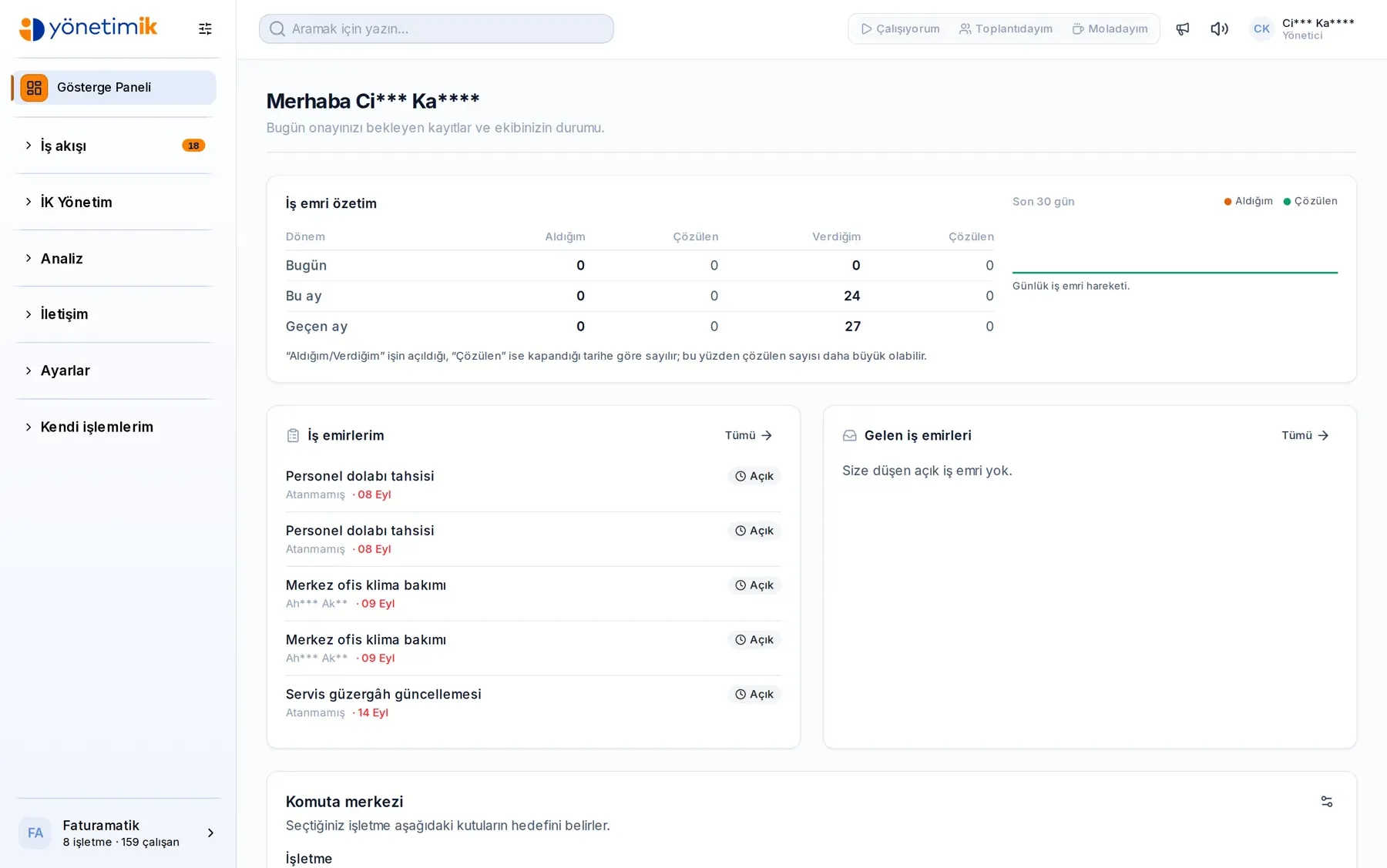
Employees & Records
Personnel files, company–branch–department structure and employment history on a single screen.
- Personal, contact and contract details on one card
- Company, branch, department and title hierarchy
- Fast search with benefit and status filters
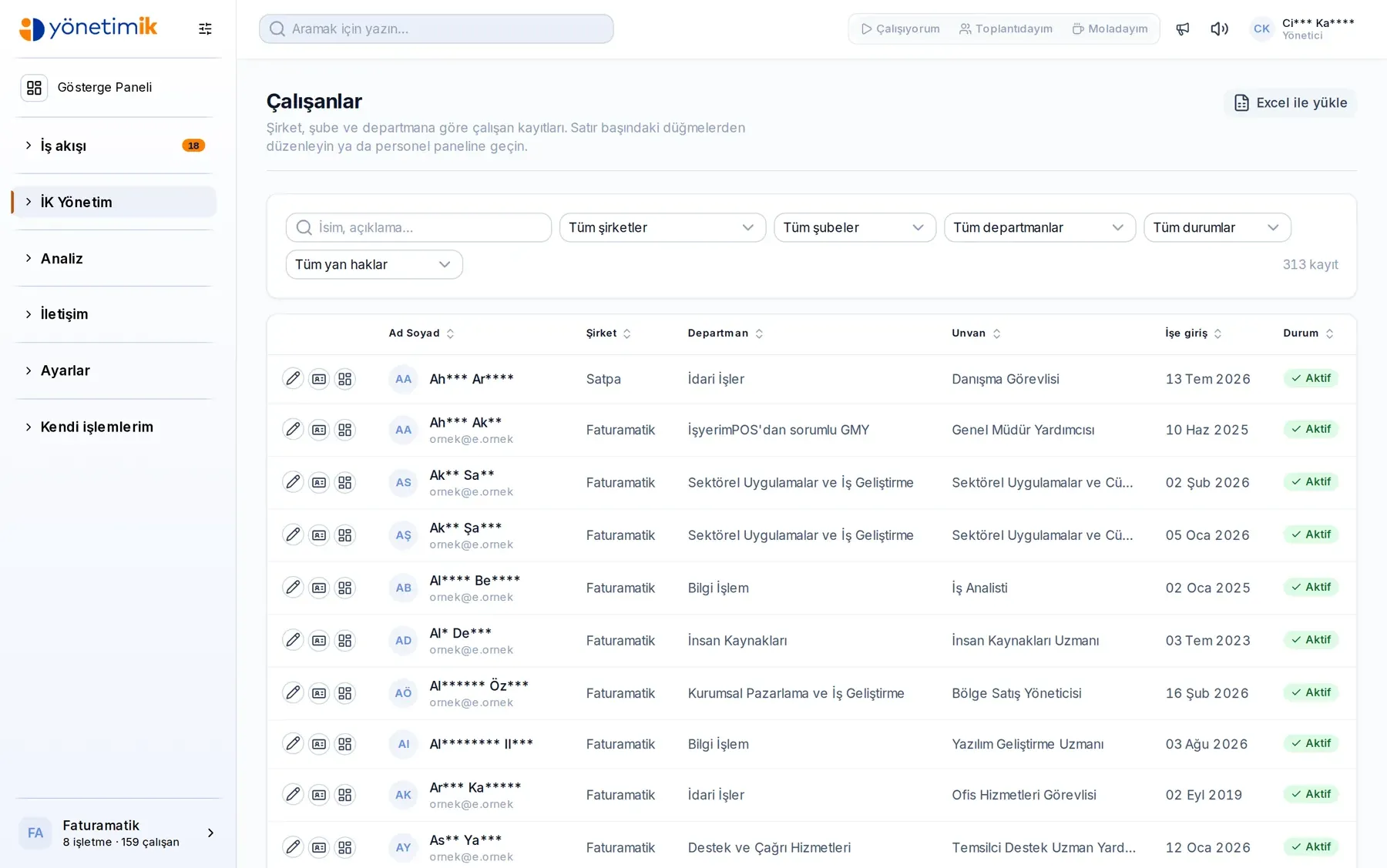
Hiring & Talent Pool
Applications land in one pool and are reviewed there; a hired candidate becomes an employee record in one step.
- Candidates fed straight from the application form
- Notes, status and evaluation history
- Transfer into personnel records on hire
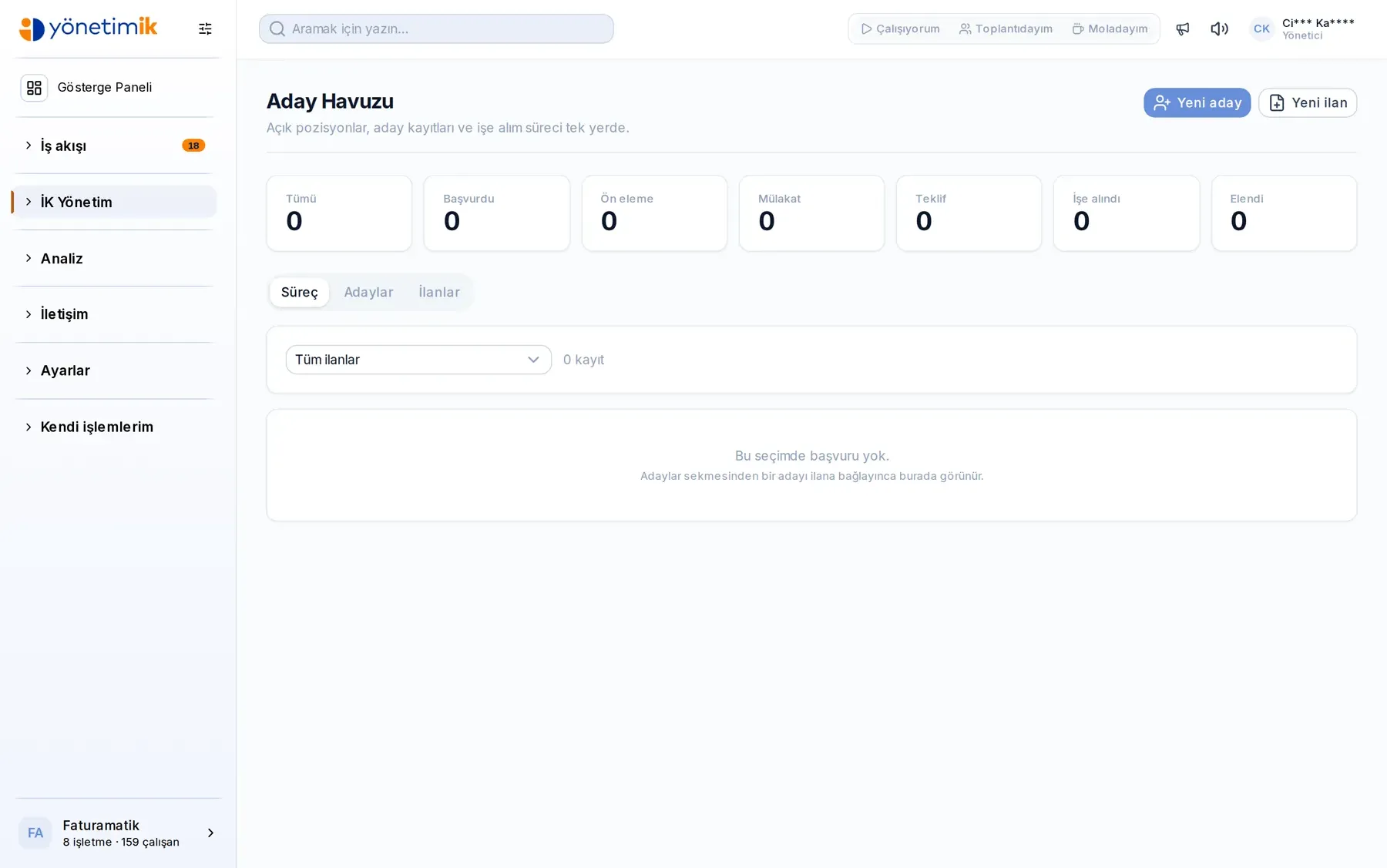
Leave Management
Annual, unpaid and sick leave; the balance is calculated cumulatively from the start date to today.
- Cumulative balance: accrued minus used
- Request, approval and cancellation on record
- Team-level overlap view on the calendar
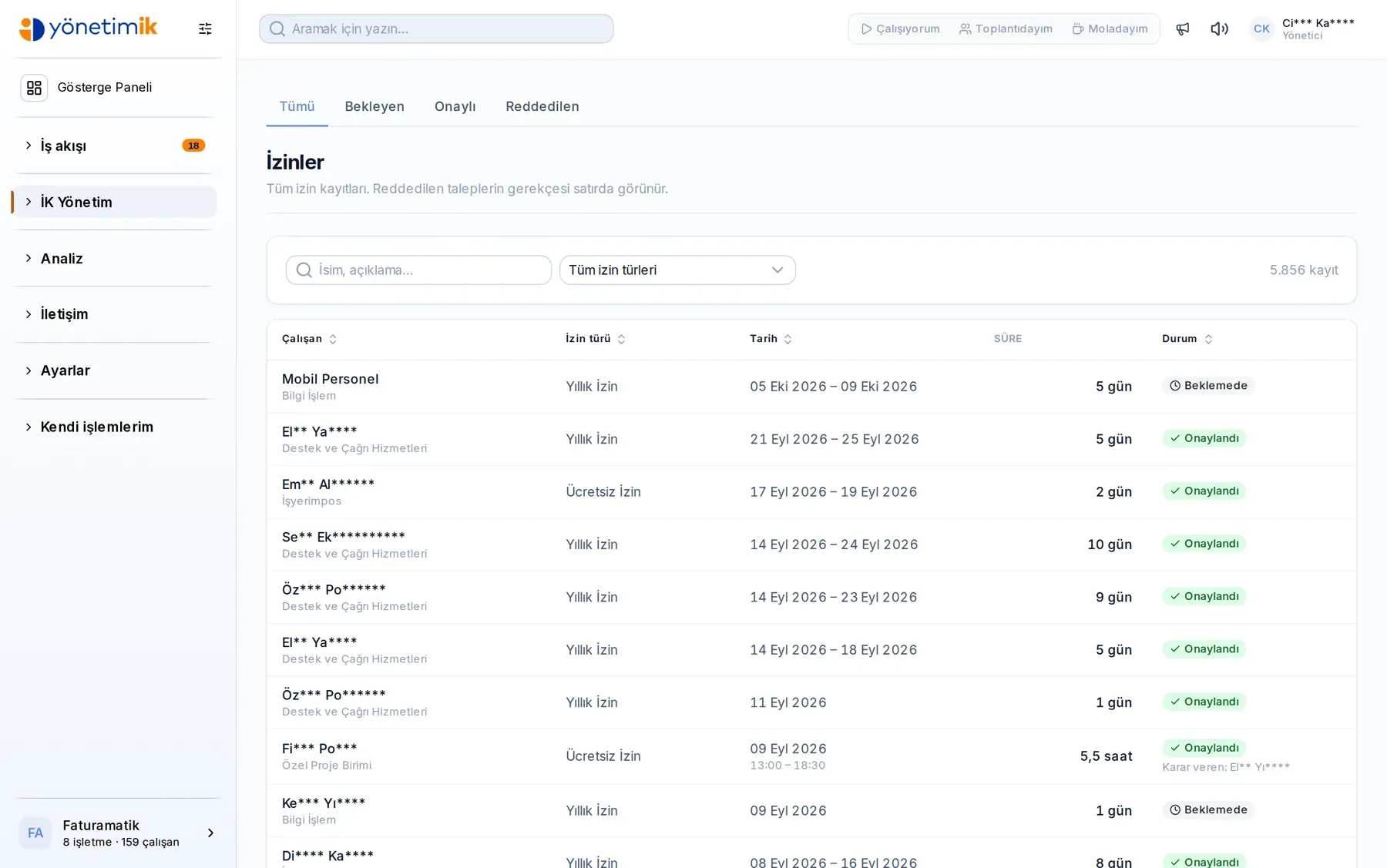
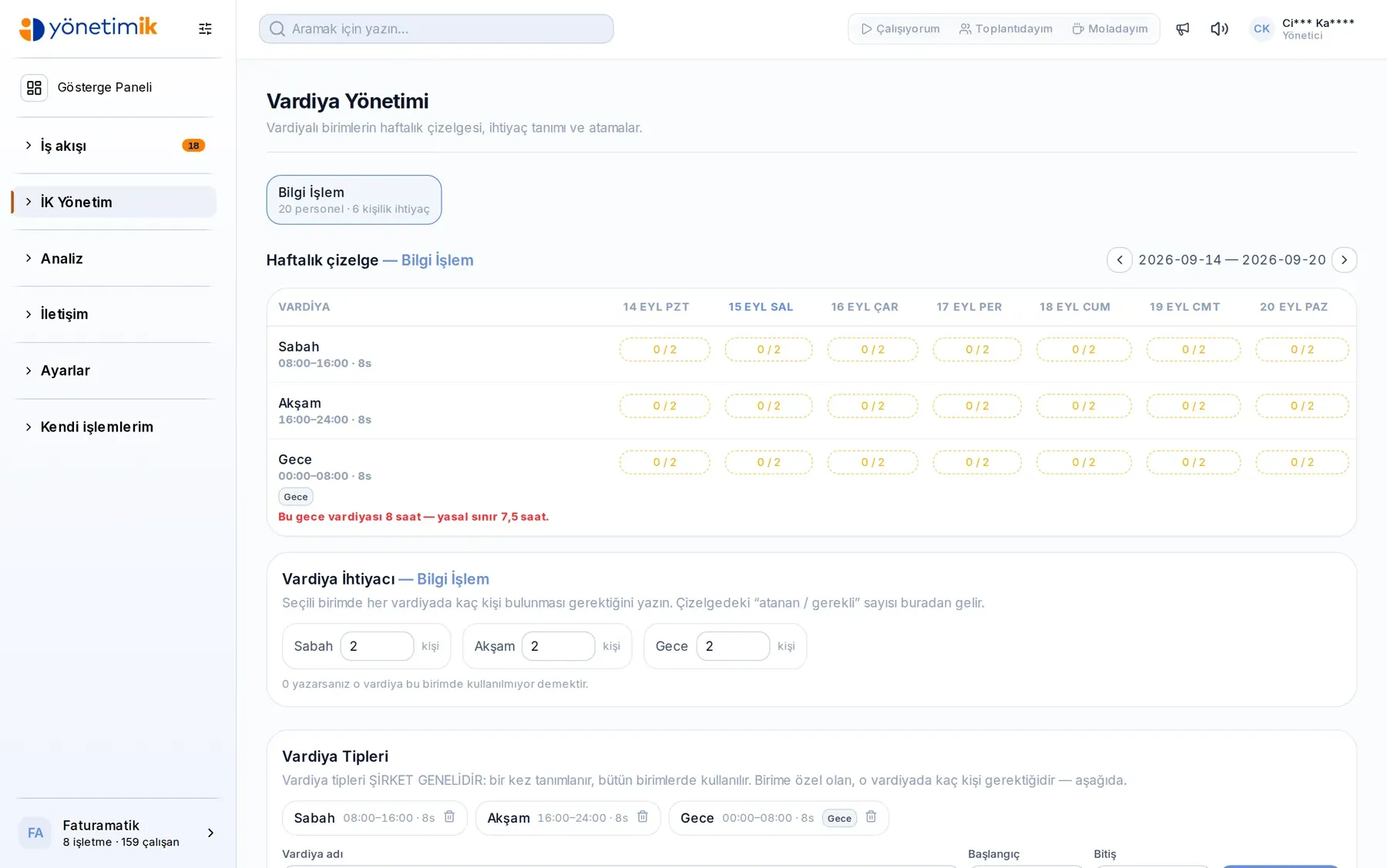
Attendance & Shifts
Shift plans, overtime and clock-in data meet on the same screen.
- Weekly and monthly shift planning
- Clock-in data imported from card systems
- Overtime and missing-day breakdowns
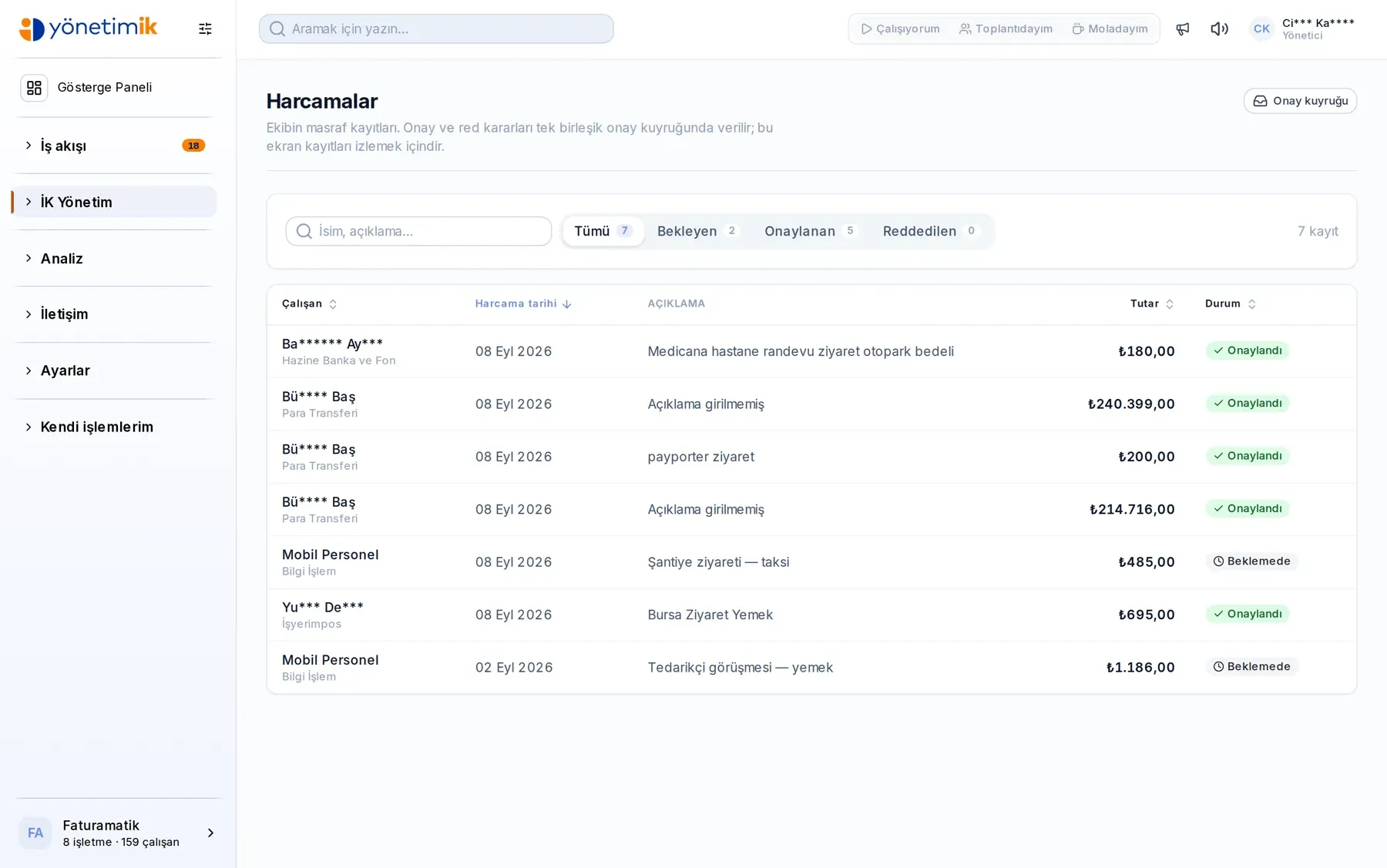
Expenses
An expense is filed with a photo of the receipt and routed to the right manager by rule set.
- Expense form with document upload
- Approval rules by amount and type
- Payment status and period reporting
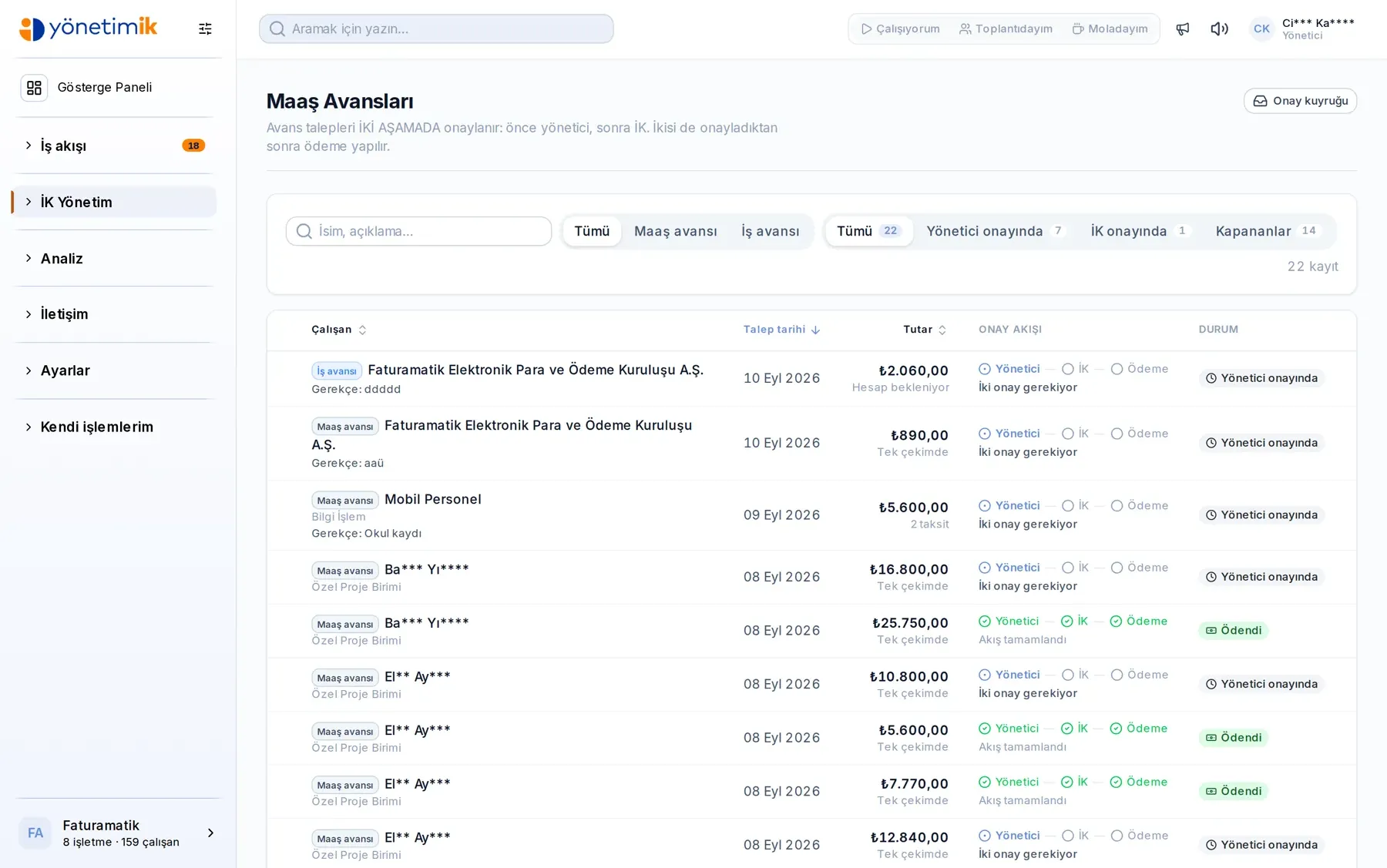
Salary Advances
Advance requests, limit rules and the deduction plan run in a single flow.
- Advance limits driven by rules
- Manager approval chain
- Deduction plan reflected in payroll
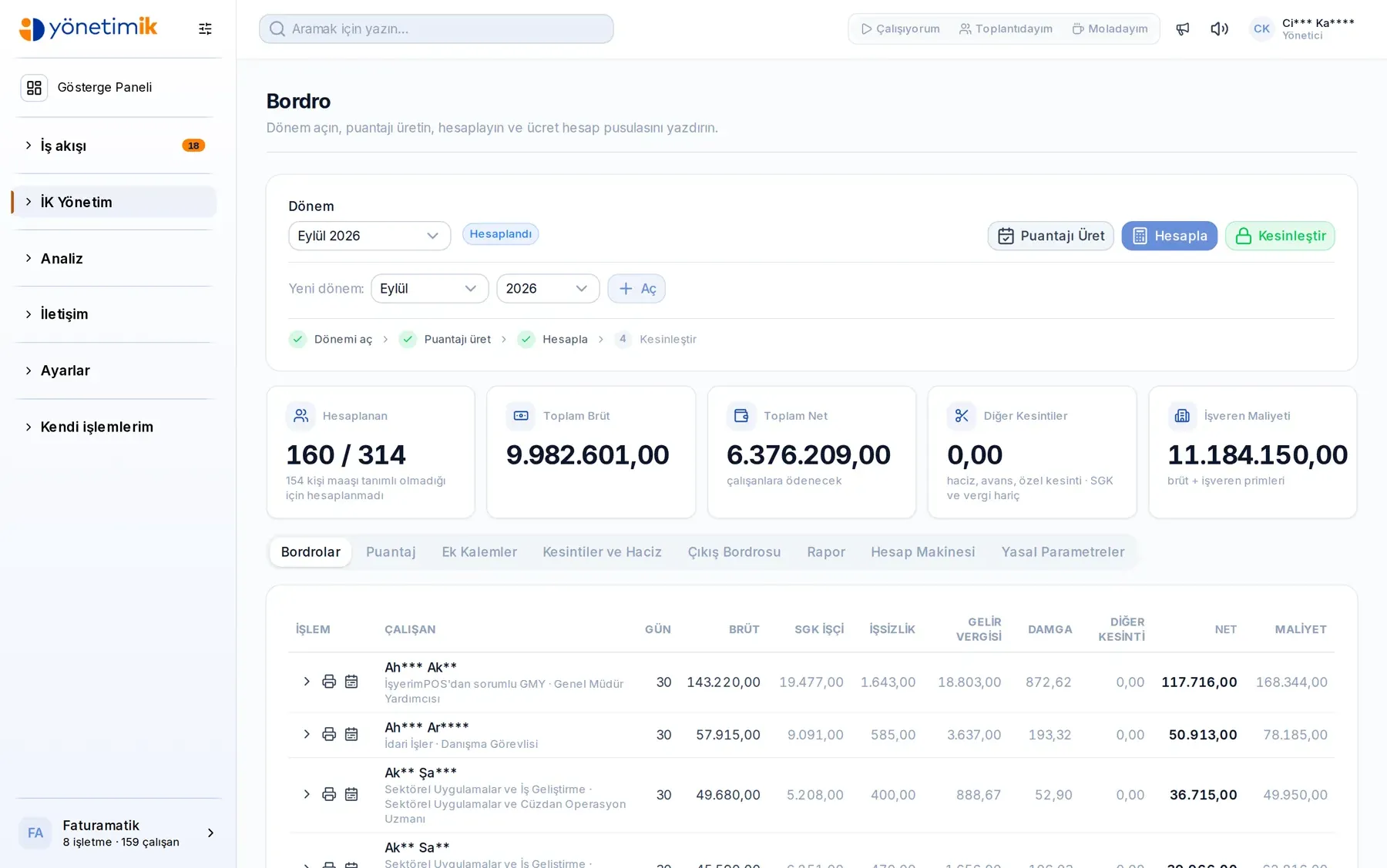
Payroll
Period payslips, deductions and benefit items; employees see their own payslip in the panel.
- Payslip breakdown by period
- Deduction, bonus and benefit items
- Private payslip access for employees
Bonus & Performance
Bonus rules, targets and entitlement tracking; who earned what stays in the table.
- Bonus rule and period definition
- Entitlement calculation and approval
- Hand-off linked to payroll
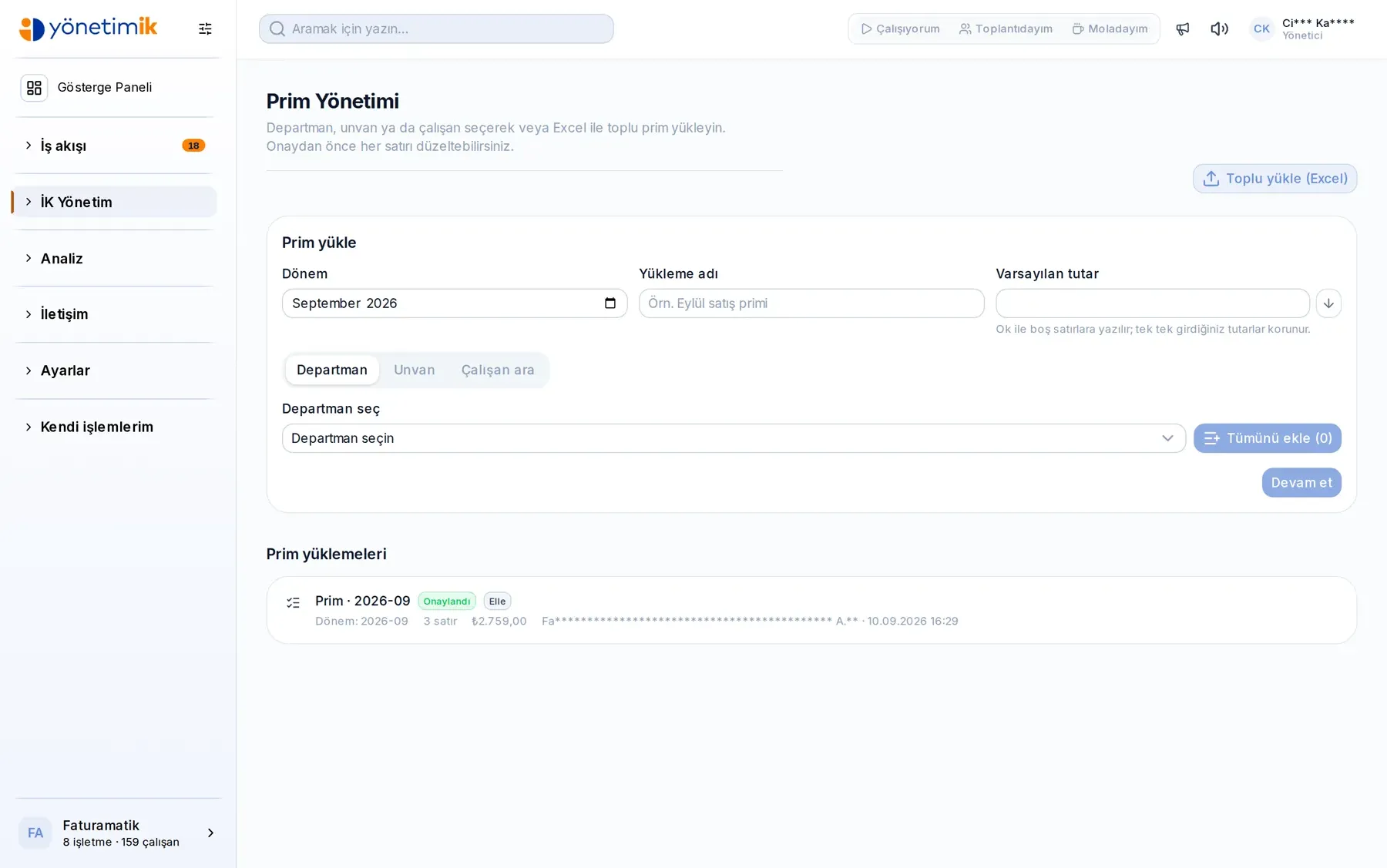
Work Orders
One employee opens a work order for another employee or straight for a department; it lands in that person's panel by itself. Whoever does the job closes it with a note, a document and a photo, and whoever opened it follows the whole thing from the same screen.
- Any employee can open a work order for a colleague or a department
- Orders arrive automatically; a department's order is visible to its members
- Status, routing and completion notes with document and photo attachments
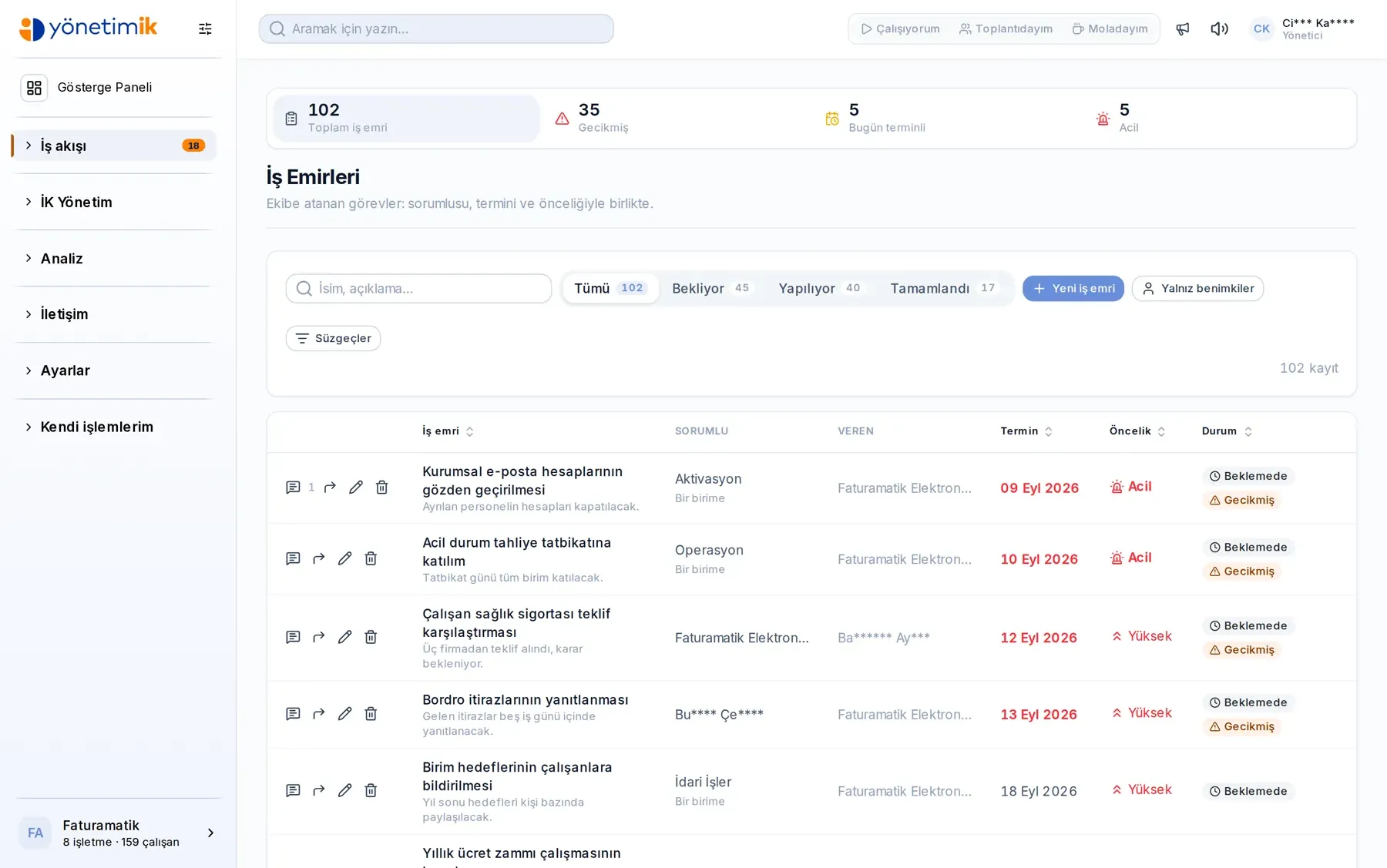
Assets & Equipment
Vehicles, phones, laptops: who holds what, when it was issued and when it came back.
- Issue and return records
- Per-employee asset breakdown
- Bulk import
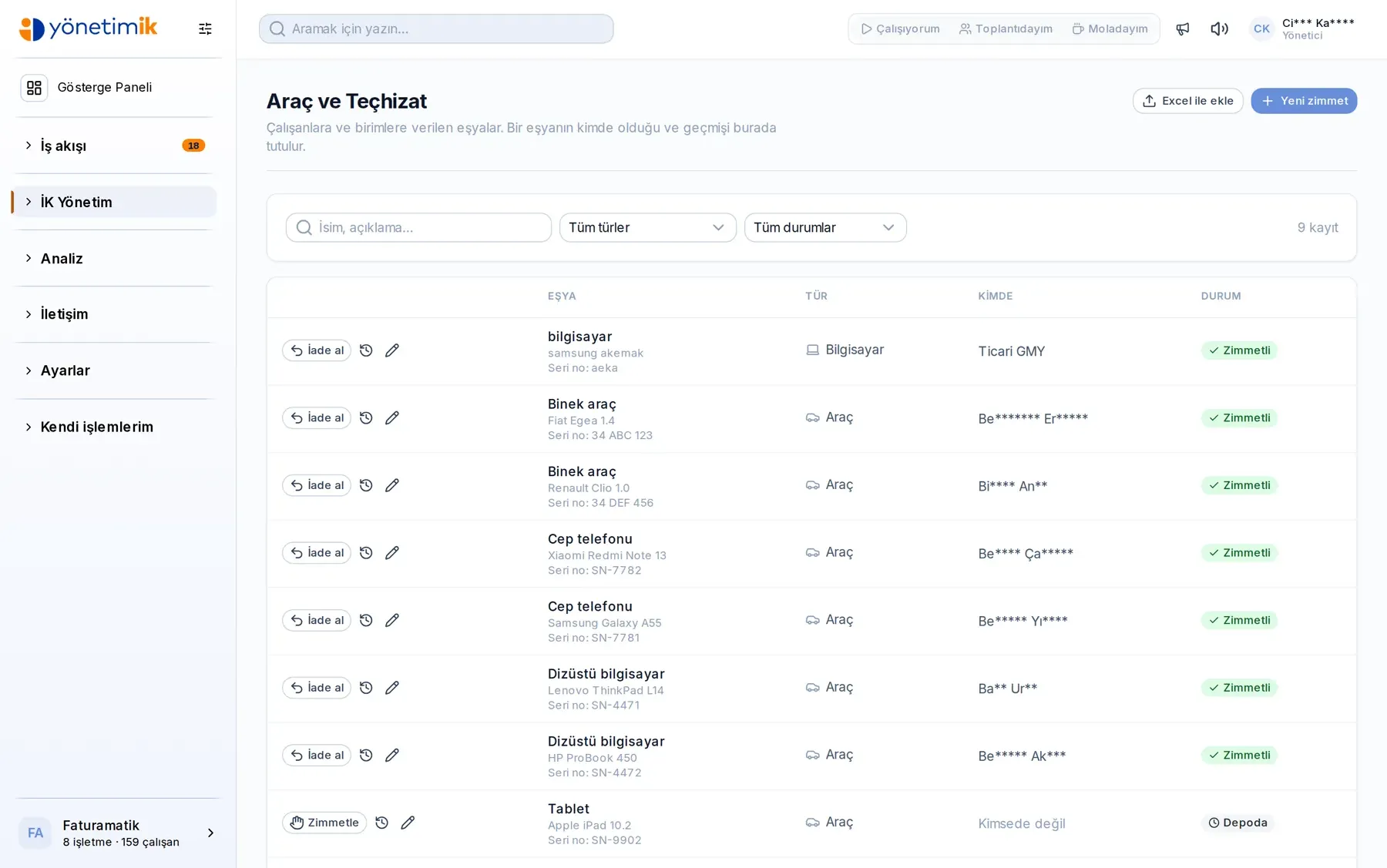
Employee Cards
Meal and fuel card top-ups, balances and person matching in one place.
- Card-to-employee matching
- Top-up and balance history
- Card provider integration
Training & Procedures
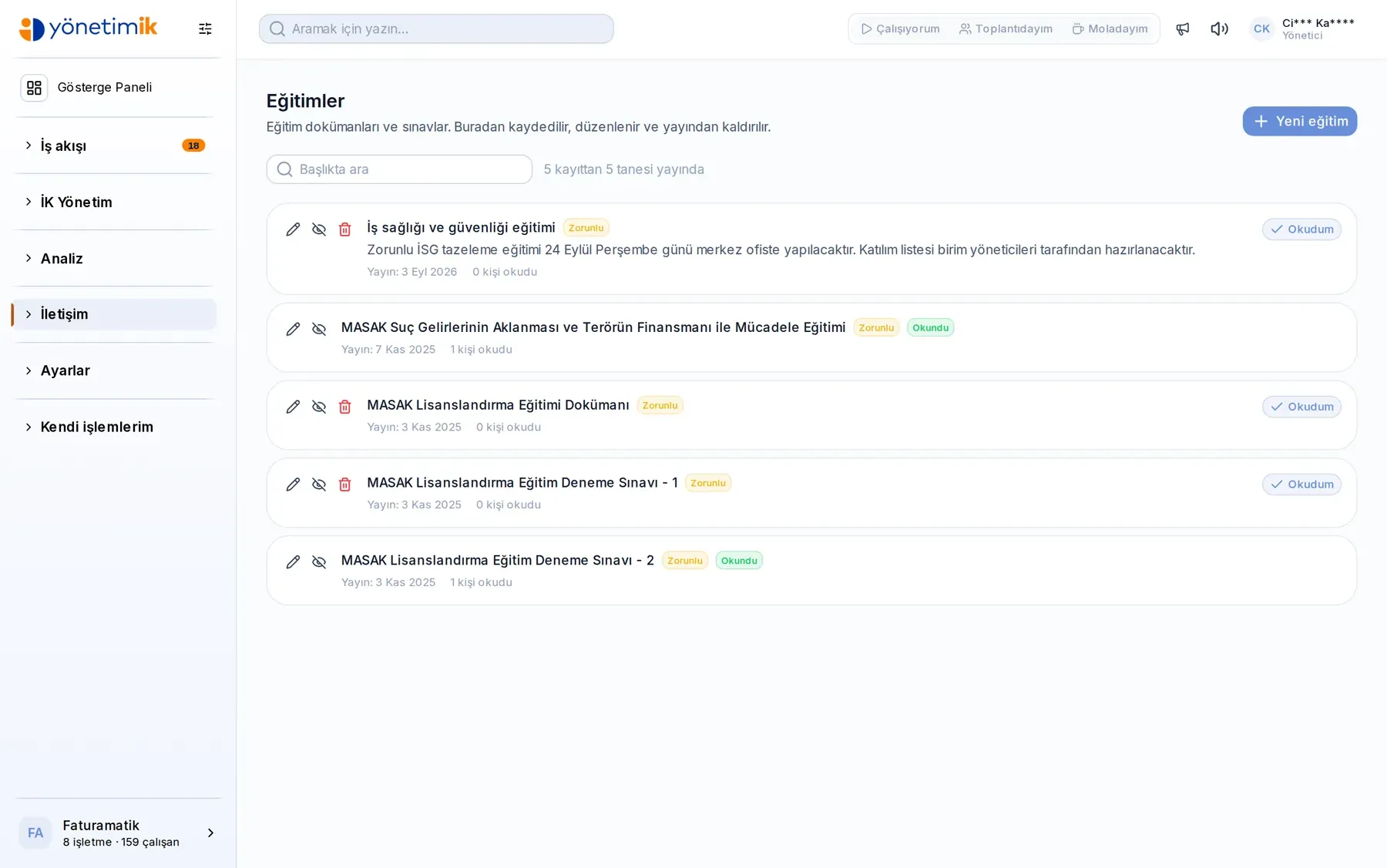
Company procedures and training material sit in the employee's panel; you see who read and who finished.
- Publishing procedures and training
- Read and completion tracking
- Document, image and video attachments
Surveys & Announcements
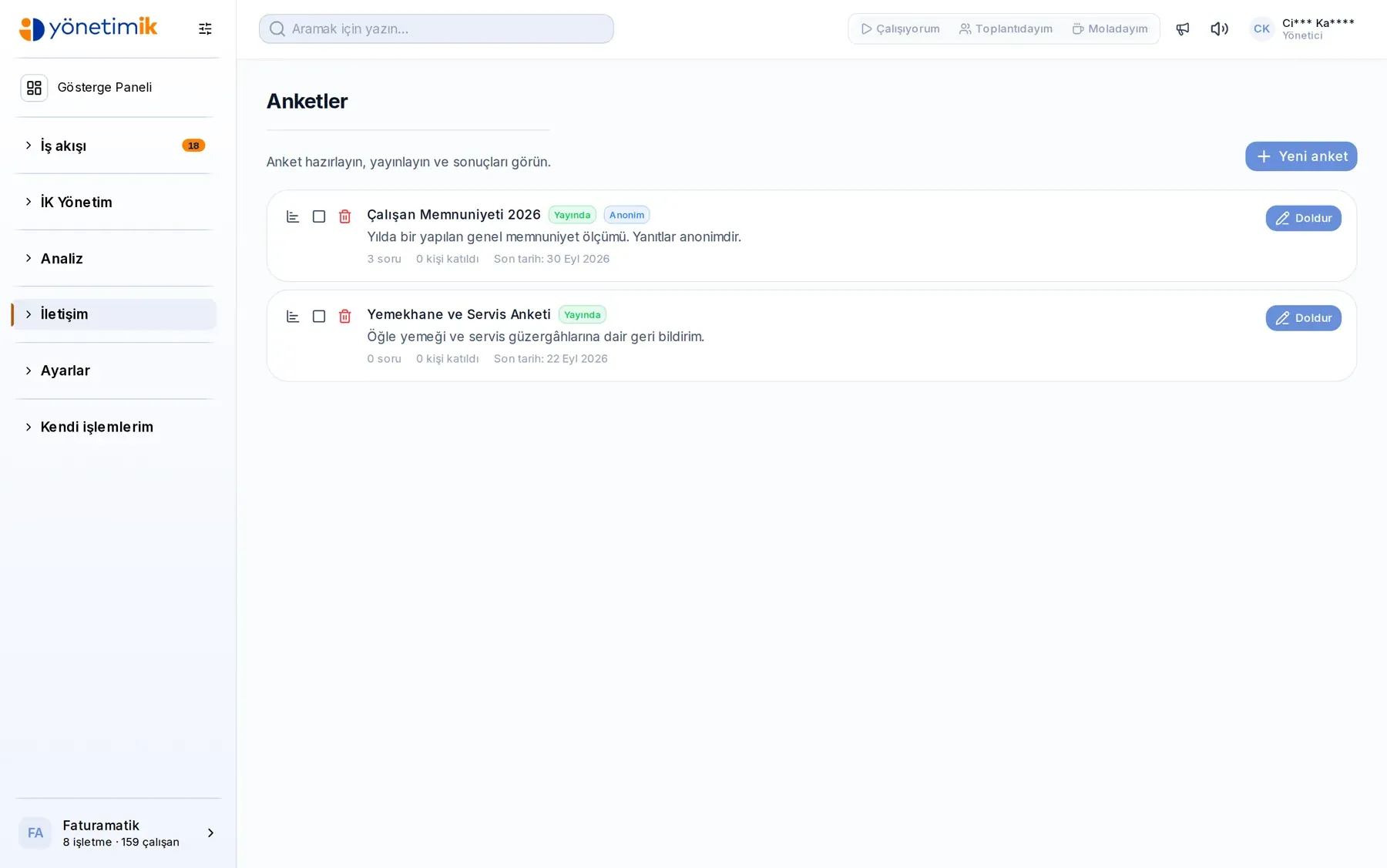
Announcements reach everyone, surveys collect the answer; participation shows instantly.
- Targeted announcement publishing
- Multi-question surveys with result breakdown
- Read and participation rates
Messaging & Notifications
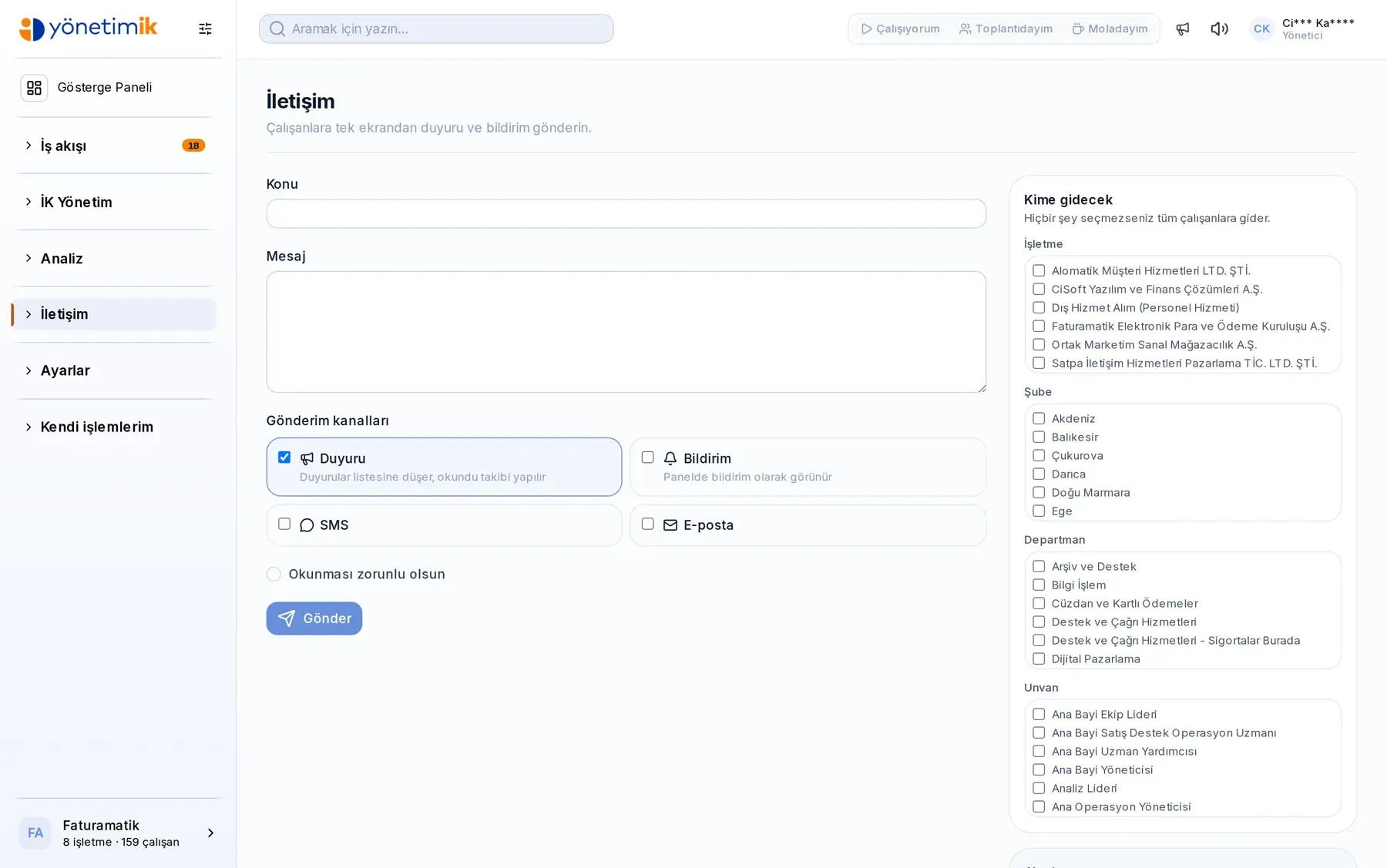
In-panel messaging, bulk sending and a notification sound — work talk stays next to the work.
- One-to-one and group messaging
- Bulk SMS and e-mail sending
- Unread badge and notification sound
Chat — Internal Messaging
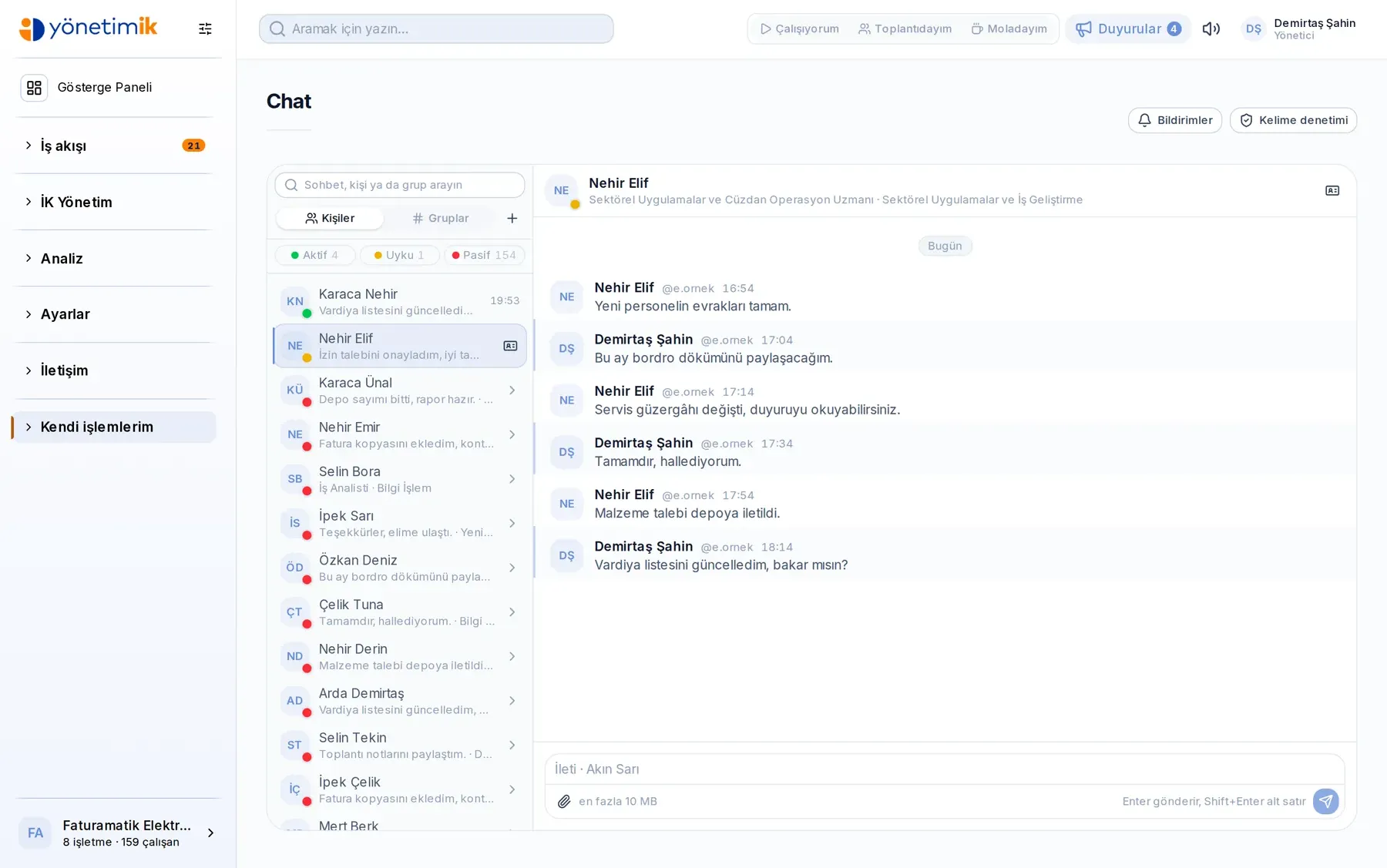
Employees and managers write to each other inside the panel, one-to-one or in groups. Work conversations stop scattering across personal phones: they stay in the company's own system, searchable and auditable.
- One-to-one and group chats; file, image and document sharing
- Read receipts, typing indicator, unread badge and notification sound
- Banned-word screening: flagged messages are reported to management
Manager Mobile App
Approval queue, team records and work orders on the phone. Managers decide without waiting to get back to the office, on exactly the same data as the panel — there is no second system.
- Approval queue: leave, expenses, advances and overtime in one list, decided in the row
- Manage incoming work orders from the phone; create new ones and route them to a person or a department
- Employee cards, leave balances and reports from the phone
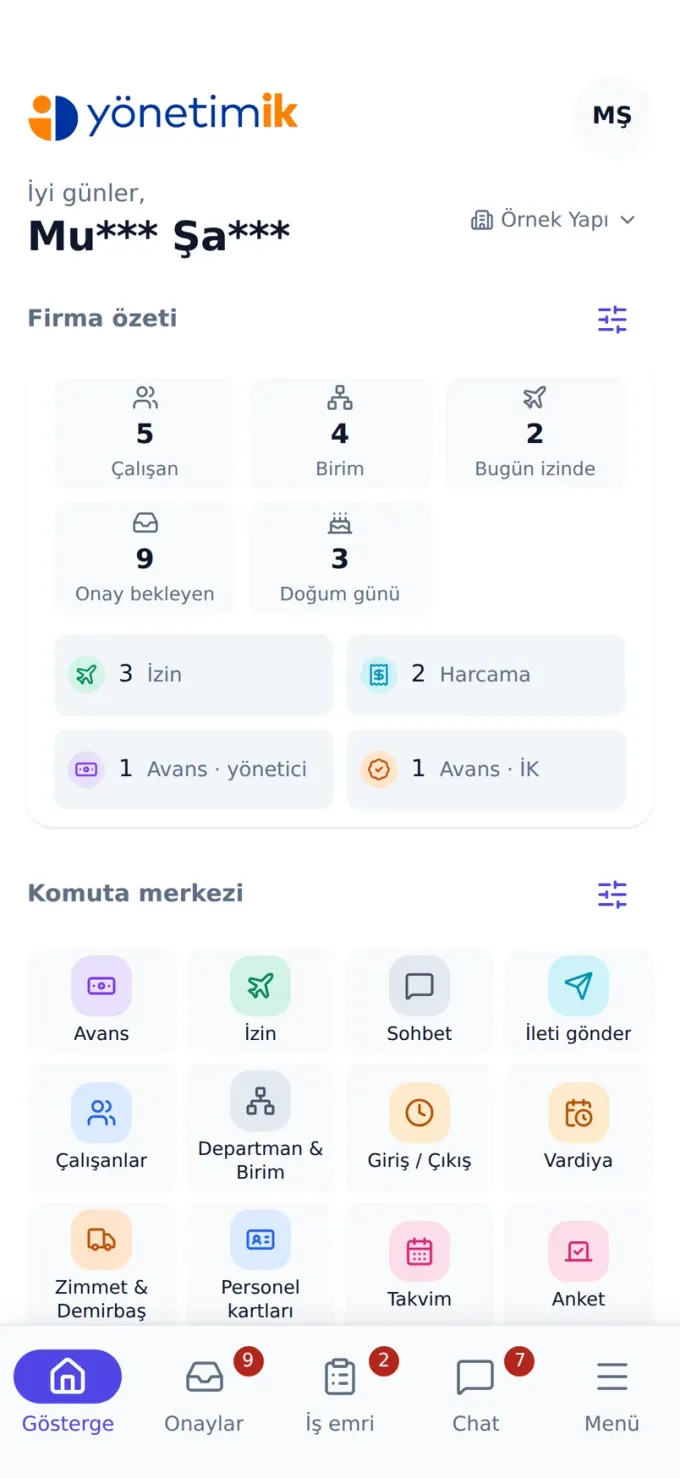
Employee Mobile App
Leave requests, a photo of the receipt, payslips and assigned equipment — one task per screen. Employees no longer need a computer, or a call to HR for every question.
- Leave, expense and advance requests with live approval status
- Handle the work orders that reach you from the phone: close them with a note, a photo and a document
- Open a work order for a colleague or a department; my assets, my payslip, chat and announcements
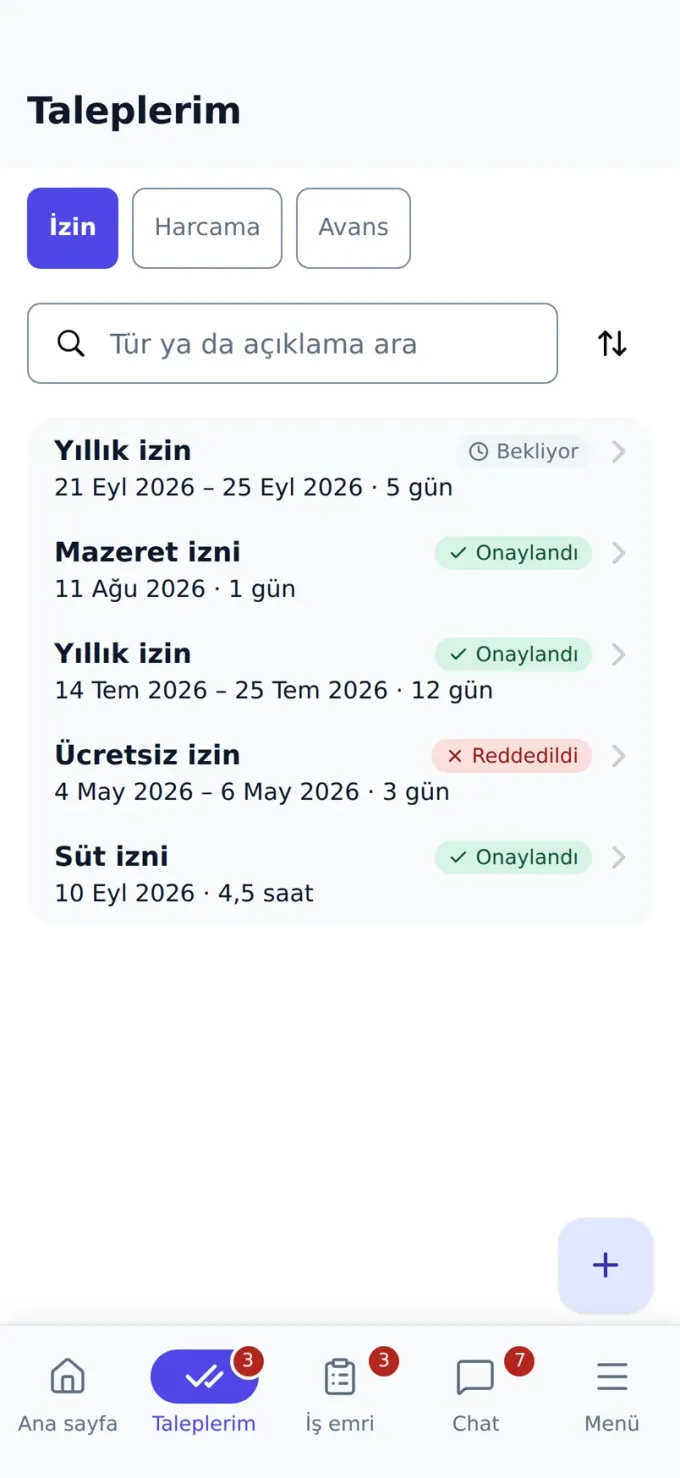
Calendar
Leave, shifts, birthdays and company events gathered in a single calendar.
- Team and company views
- Leave overlap warnings
- Event and meeting records
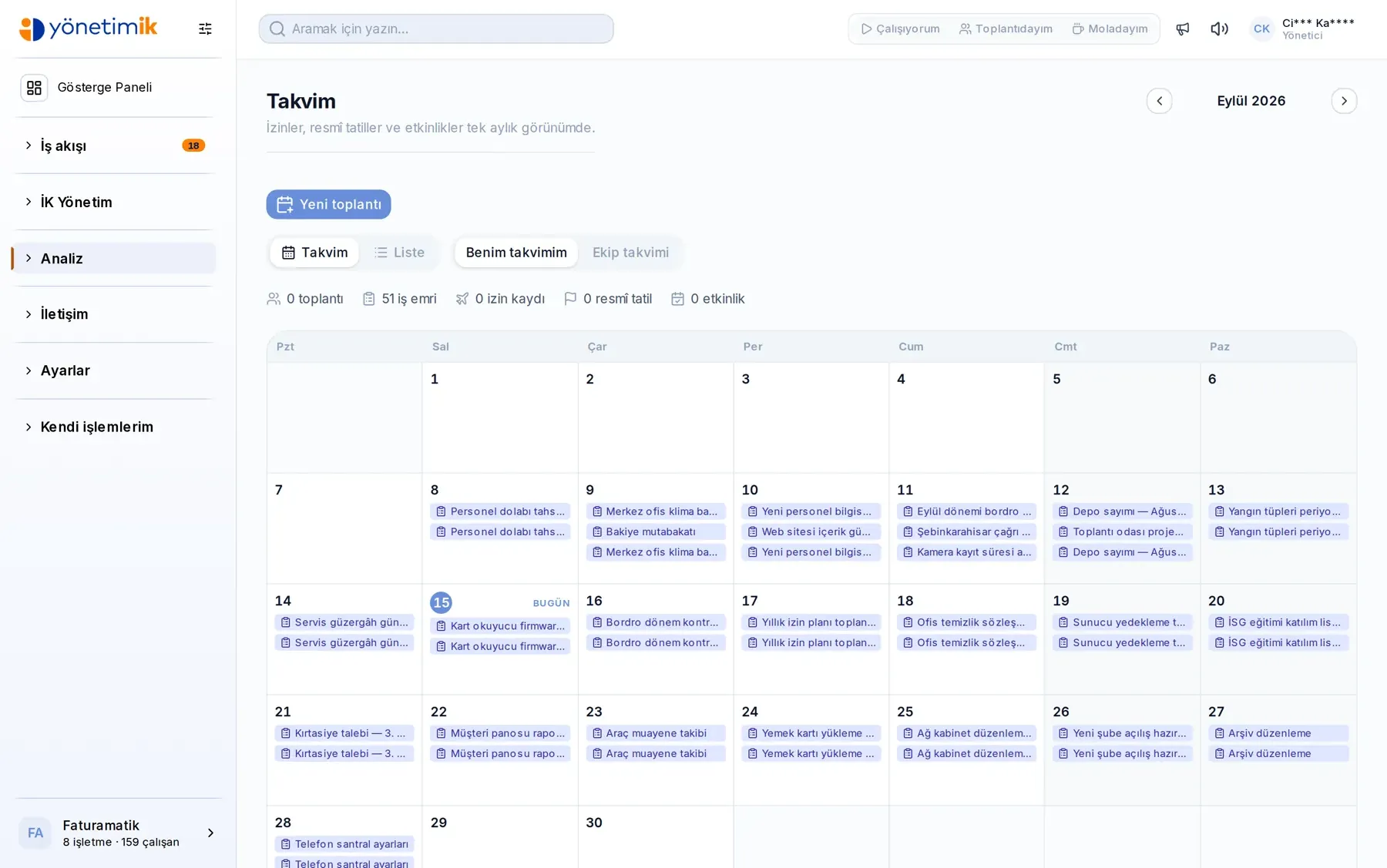
Reports & Analytics
Headcount, absence, cost and request reports; read them on screen or take them out.
- Headcount and movement reports
- Period comparison
- Export the table
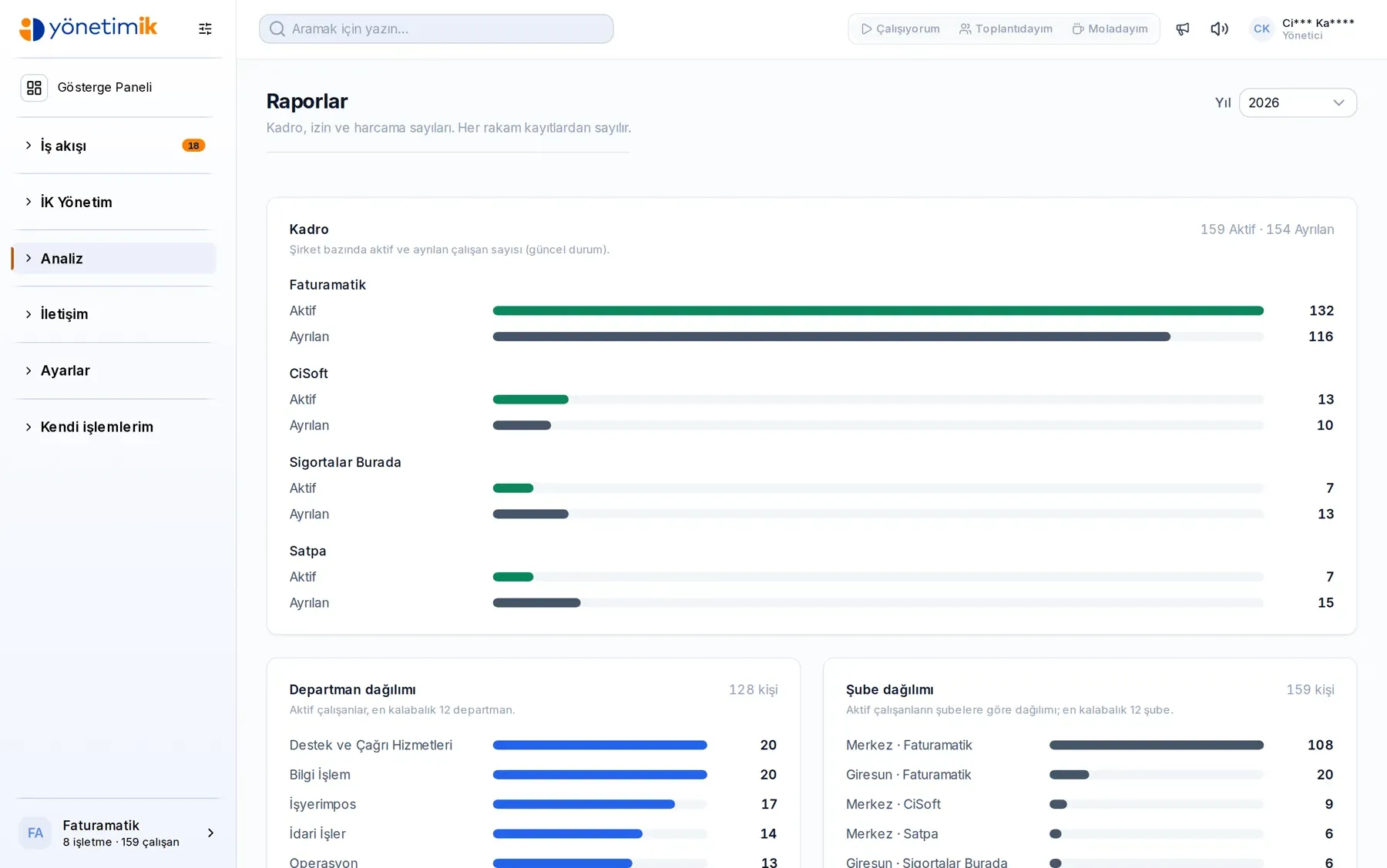
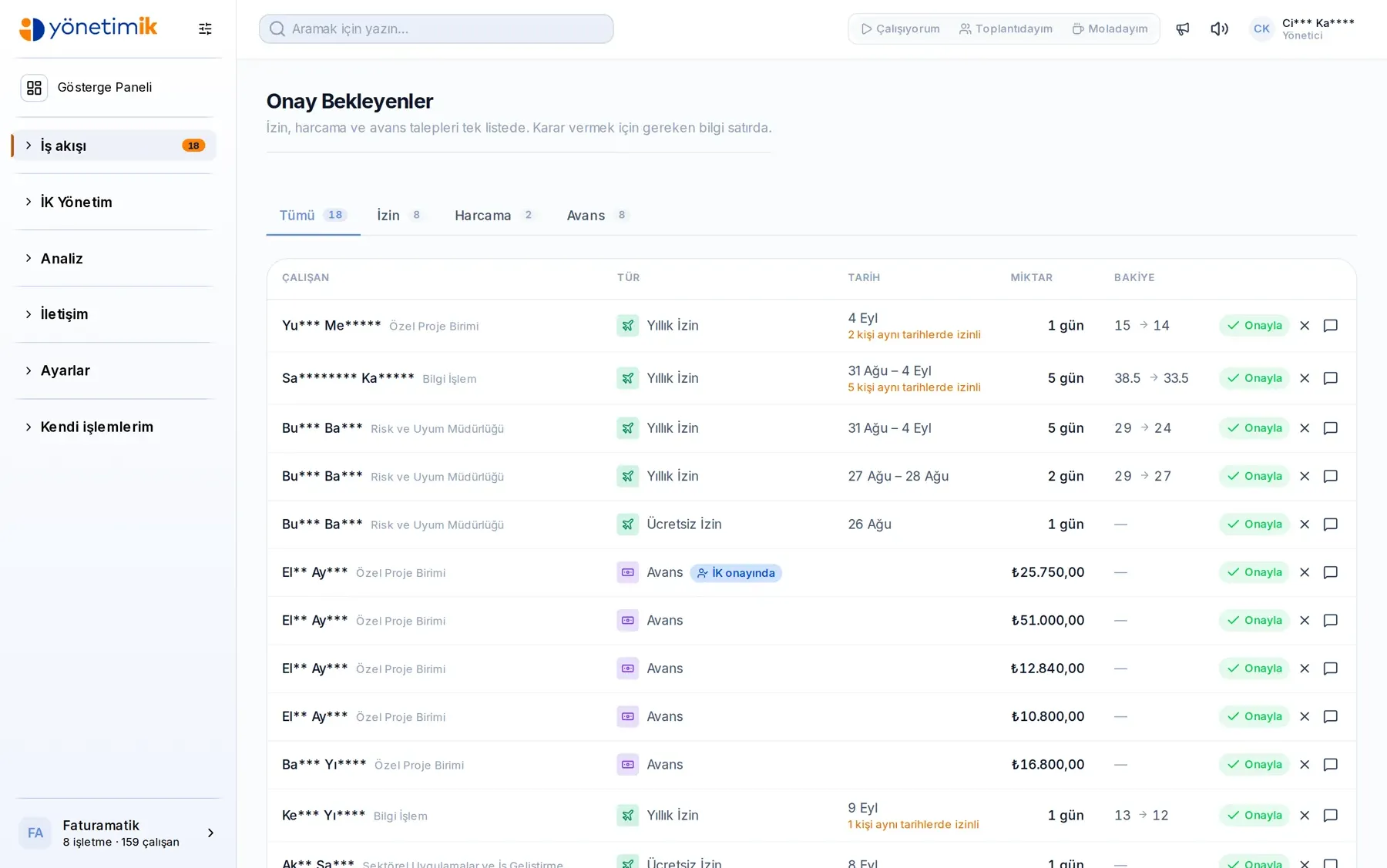
Approval Flow
Leave, expense, advance and overtime requests queue up together; the manager decides in the row.
- One unified approval queue
- Approve, reject and justify in the row
- Decision history and delegation
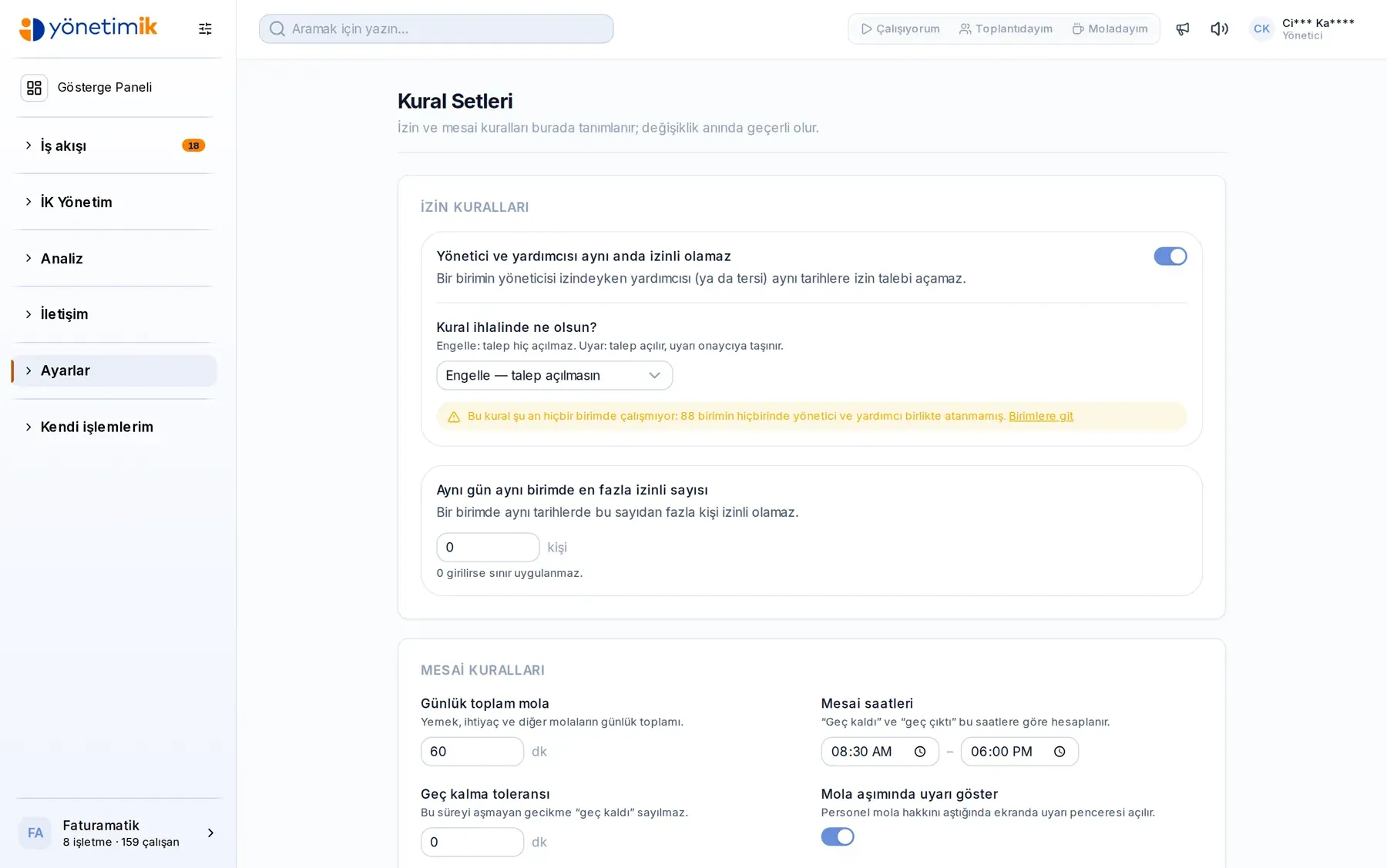
Rule Sets & Settings
You define the leave, expense and advance rules; the panel runs on them.
- Leave and attendance rule sets
- Expense and advance limits
- Role and permission definitions
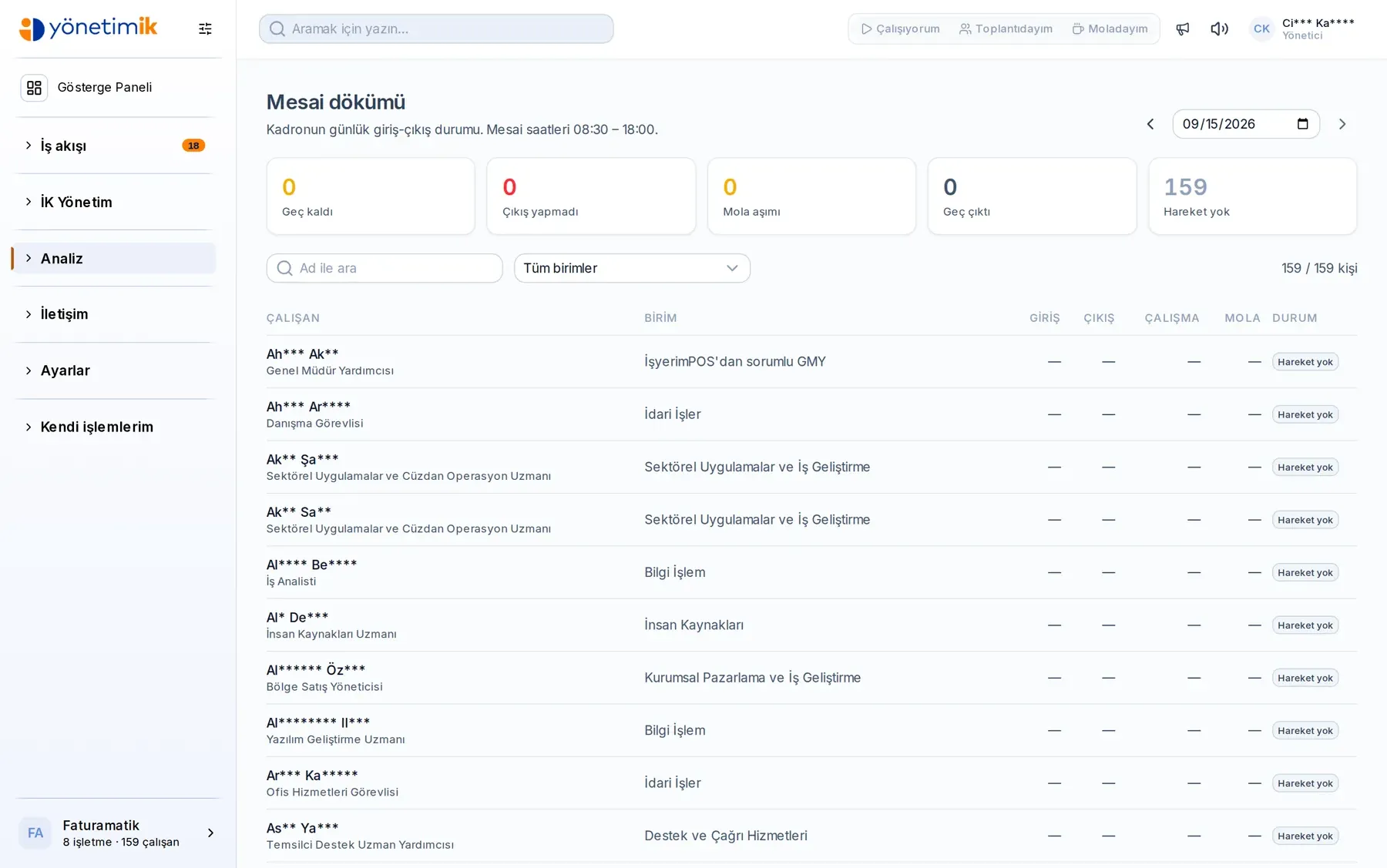
Attendance & Clock-in
Daily clock-in status of the whole workforce on one screen: who arrived late, who never clocked out, who exceeded their break. Card-reader records and in-app statuses land in the same place.
- Counters for late, missing clock-out, exceeded break and no activity; click a counter to filter the list
- Start and end of the working day, tolerance and daily break allowance are set per company
- Step back day by day for past records; filter by unit and by name
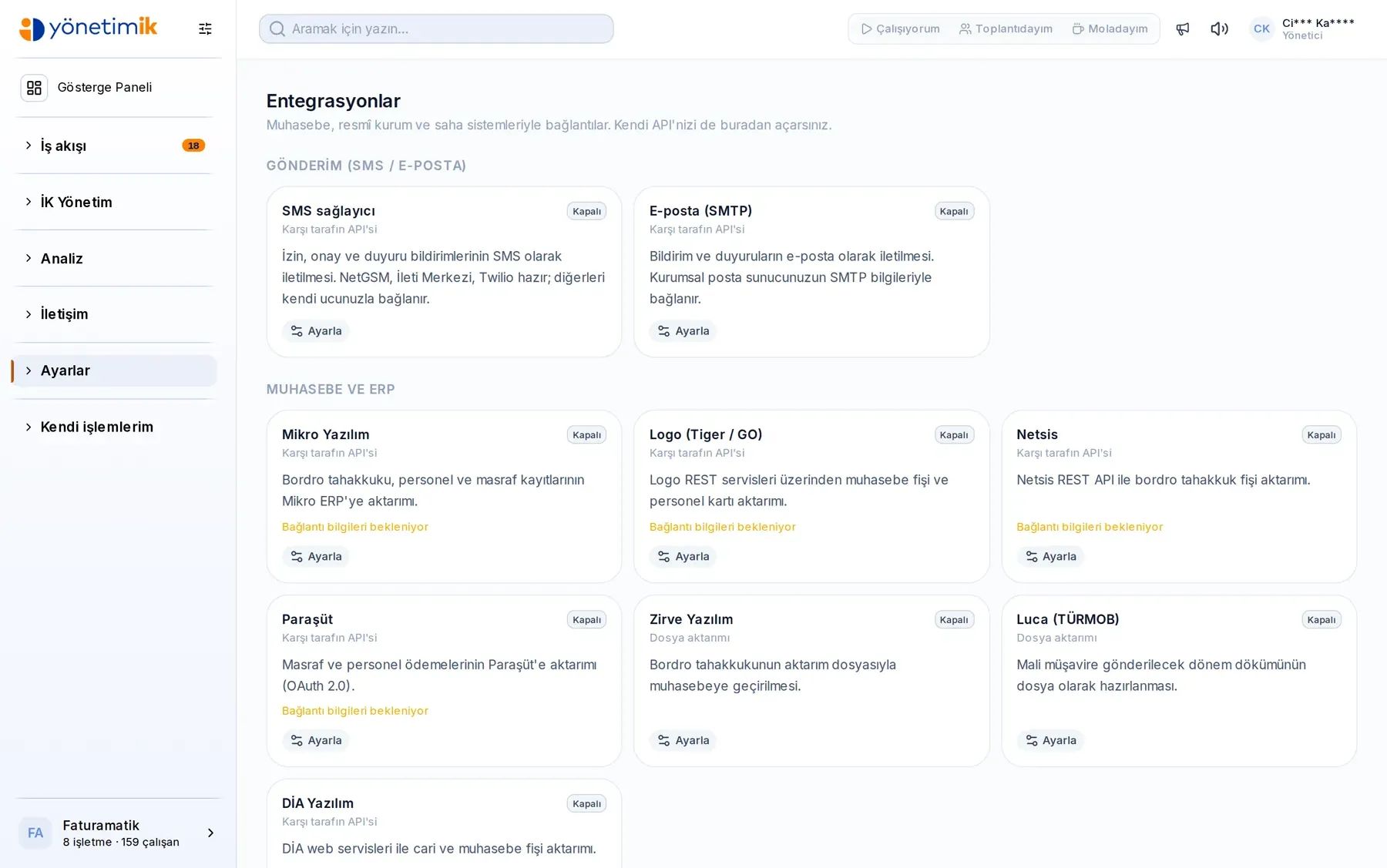
Integration Hub
Connections to accounting, government, banking and field systems in one place. Connect through their API, open your own API, or download the transfer file.
- Accounting and ERP (Mikro, Logo, Netsis, Paraşüt, DİA, Zirve, Luca), government (SGK, GİB, İŞKUR), bank, time-clock and meal-card connections
- Your own API: generate a key, share the address; employees, units, leave, timesheet and payroll can be read from outside, timesheet can be written back
- File transfer: period accruals, social security and withholding statements, bank payment list and meal-card top-up in one click
Procedures & Documents
Company procedures, instructions and forms published in one place, with read tracking. Works together with the training module.
- Version tracking: every published procedure keeps its date and owner
- Read tracking — you can see which employee read which document
- Document attachments (PDF, DOC) and publication state management
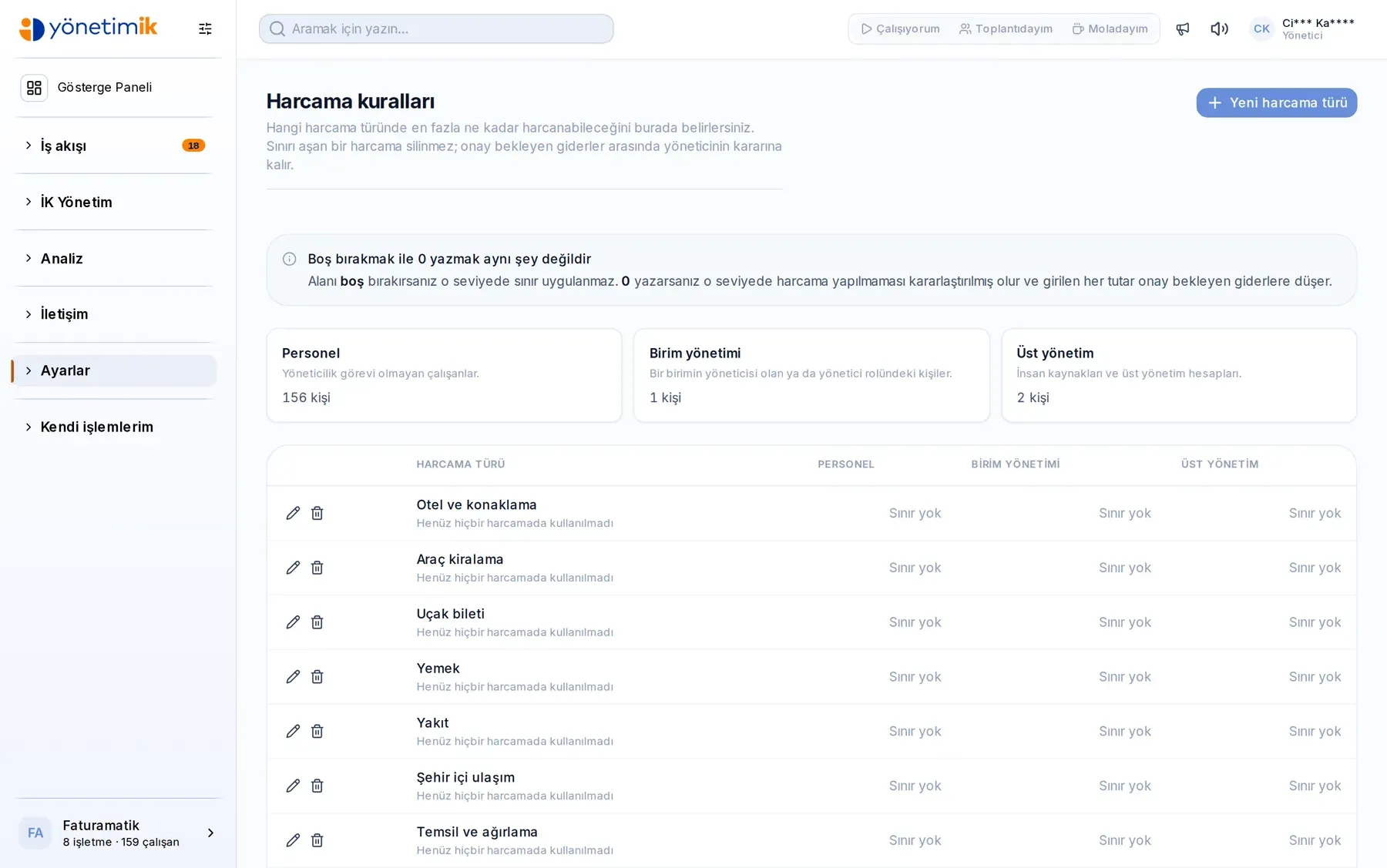
Spending & Advance Rules
Who can spend how much, on what? The rule is written once and the request screen follows it — it warns before a request is even created.
- Upper limit per expense type and employee level; set it to zero to close that type entirely
- Advance rules: percentage of salary, requests per month, consecutive-month limit and payment days
- A rule breach is explained to the user at request time, with the reason; the manager is not forced to reject afterwards
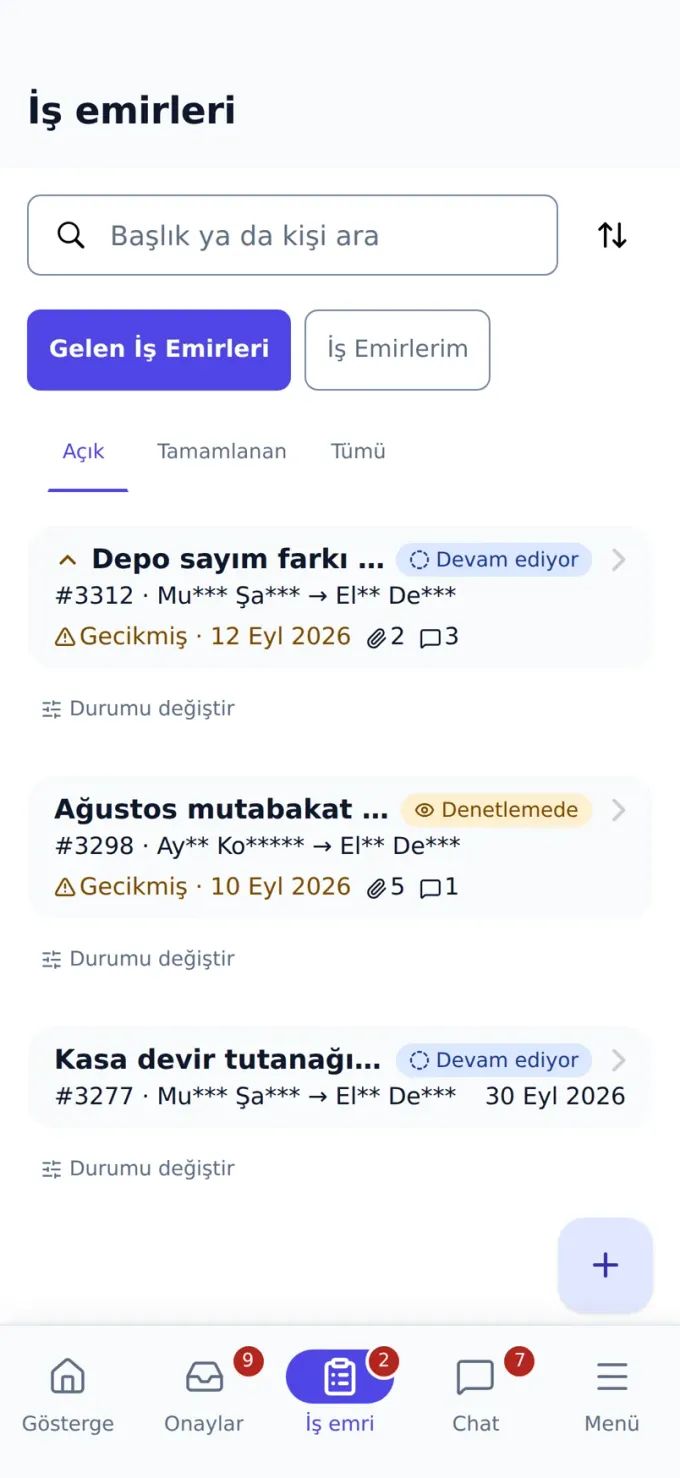
Mobile Work Orders
Field teams see work orders on their phone, change the status and create new ones. Incoming and outgoing orders sit in separate tabs, overdue ones flagged.
- Incoming work orders and the ones you opened in separate lists; open, completed and all tabs
- Change the status from the phone, redirect to another employee or department
- Overdue work orders carry a warning badge; search by title or person
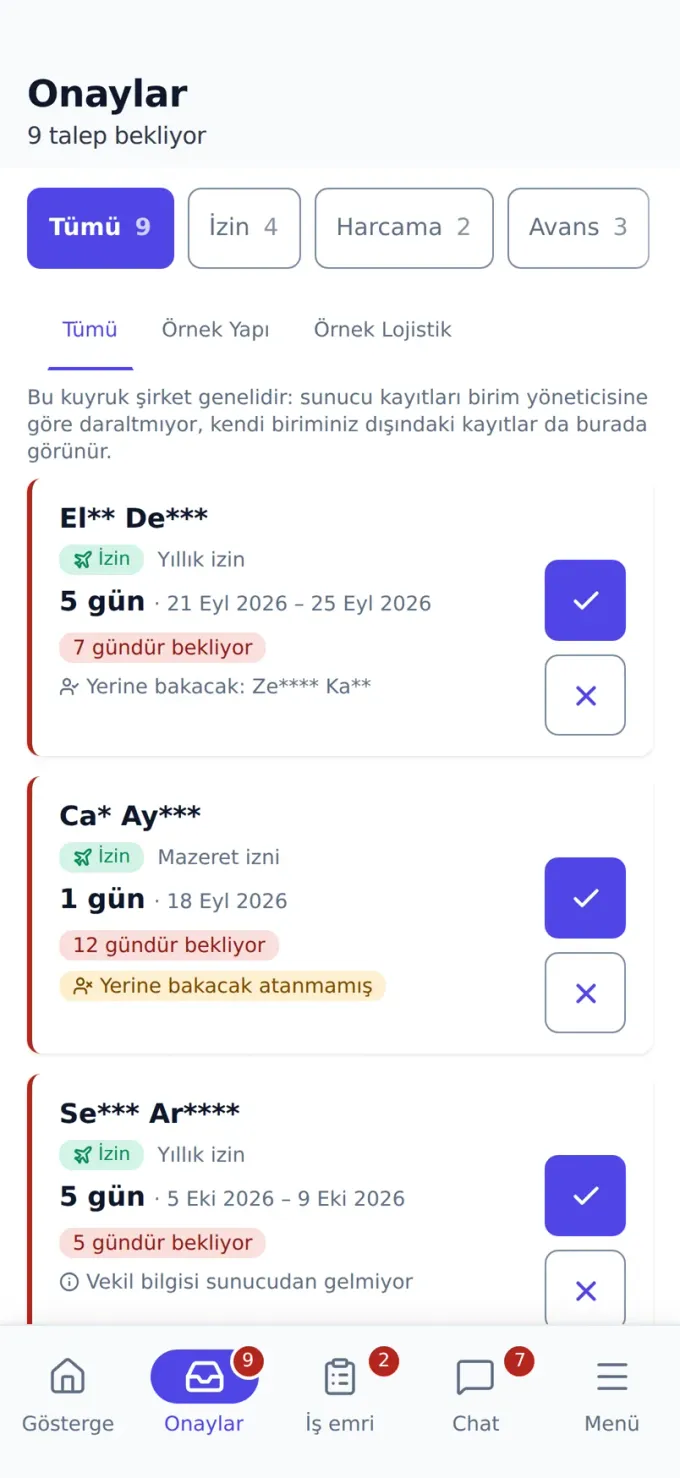
Mobile Approval Queue
Leave, expense, advance and profile-change requests in a single queue. The manager decides in the row; the result reaches the panel instantly.
- All pending requests in one list, separated by type badges
- Approve or reject from the phone; the rejection reason is visible to the requester
- The badge in the bottom bar shows the pending count live
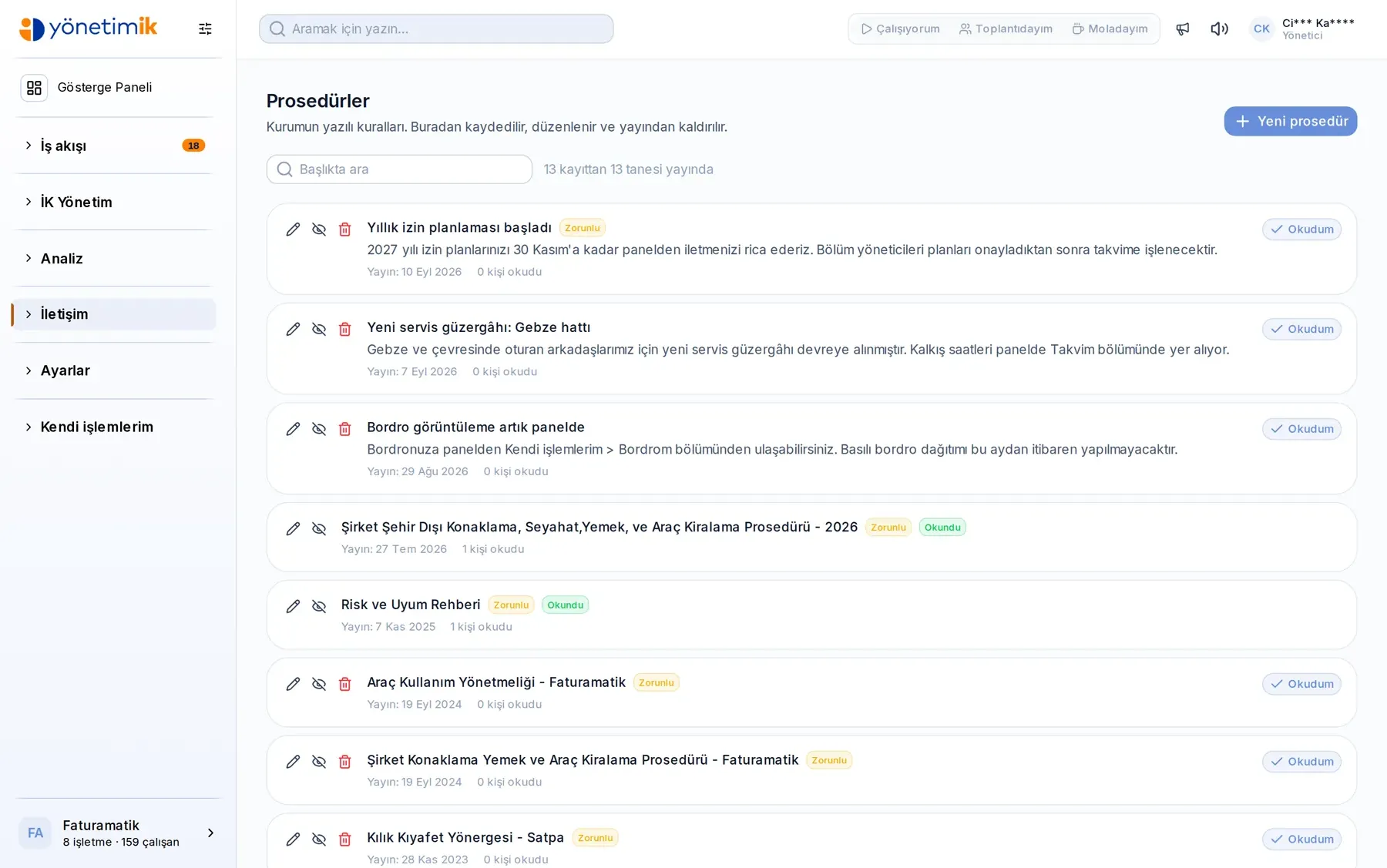
One panel, three kinds of user
Some people open the panel several times a day; others three times a year. The menu narrows by role, so everyone sees only their own work.
HR and management
Access to every record, rule definitions and reports. Screens are built for bulk views and fast search.
Line manager
Sees only their own team and approvals. The decision is made in the row — no drilling down.
Employee
Requests leave, files expenses, checks payslips. One task per screen; nothing to learn.
Standard in every module
The shared foundation that connects the modules: whichever one you open, the same permissions, the same records, the same access.
Roles and permissions
With department and branch manager assignments, you decide who sees what.
Approval flows
Requests reach the right manager and the decision history stays on record.
Mobile access
Employees and managers complete the same tasks from their phones.
Reportable records
Data from every module flows into reports, so you no longer keep separate spreadsheets.
Mobile app
Add the mobile app to your phone
No installer to download: open the address in your phone's browser and add it to your home screen. It then opens full screen, with its own icon.
- iPhone: open in Safari → Share → “Add to Home Screen”
- Android: open in Chrome → ⋮ → “Add to home screen”
Your sign-in details are the same as the panel; no separate account needed.
Scan the QR code with your phone
 iPhone · iOS
 Android
 Huawei · HarmonyOS
Store releases are on the way. For now the code opens the app in your phone's browser, and you can add it to your home screen from there.
Let's decide together which modules you need
In the free demo we listen to your teams' processes and show you the module setup that fits.